


🌐 Language: 🇻🇳 Tiếng Việt · 🇬🇧 English (current) · 🇯🇵 日本語
Receive site error reports in Slack, Google Chat…
Introduction
When the site hits an error, it always writes it to the log file on the server. This document shows how to also send error reports to your operations team's chat channel (Slack, Google Chat, or another service such as Mattermost or Discord) so you learn about problems right away, without opening the logs. It is meant for site administrators and operators; after reading it you can set this up in the admin panel and check that reports arrive.
At a glance
Every report is written to the log; a message to the chat channel goes through one more filter so the channel is not flooded:
flowchart LR
    A["Site error"] --> B["Write the log file<br/>(always)"]
    A --> C{"Sent<br/>recently?"}
    C -->|"no"| D["Send to every<br/>field with a URL"]
    C -->|"yes"| E["Skip this send"]
- Set up on the Webhook screen of the admin panel: three fields — Slack, Google Chat and a third-party webhook.
- A URL is a secret: stored encrypted; the screen only shows "Saved / Not set", never the URL again.
- Does not slow the site down: each send waits at most 3 seconds; if the chat service fails or is slow, the site keeps working.
- Does not flood the channel: the same error is sent at most once every 60 seconds, the log file still records every time.
On this page
- Choose a service for error reports — which services work, which field to use
- Get the webhook URL — create the receiving URL on each service
- Set up on the Webhook screen — enter the URL and send a test
- Fallback in .env — keep receiving reports when the database is down
- Conditions & Rules — valid addresses, time and rate limits
Choose a service for error reports
This section tells you whether your team's chat service works and which field its URL goes into.
| Service | Works | Field | Example URL (format) |
|---|---|---|---|
| Slack | ✅ | Slack | https://hooks.slack.com/services/T.../B.../... |
| Google Chat | ✅ | Google Chat | https://chat.googleapis.com/v1/spaces/AAAAbCdEfGh/messages?key=xxxx&token=xxxx |
| Mattermost | ✅ | Third-party webhook | https://chat.example.com/hooks/xxxxxxxxxxxxxxxx |
| Discord | ✅ | Third-party webhook | https://discord.com/api/webhooks/123456789012345678/xxxx/slack (add /slack at the end) |
| Microsoft Teams, Chatwork, Telegram, LINE | ❌ | — | Do not take messages at a single URL (need a token or their own format) |
ℹ️ Info: the URLs above only show the shape of a webhook URL — the
xxxxparts are the secret the service gives you. On the Webhook screen every empty field shows a grey example URL and a note below it (where to get the URL, an example).
- Google Chat needs a Google Workspace Business or Enterprise account.
- Fill in as many fields as you like. Every report goes to every field that has a URL.
- The "third-party webhook" field takes any service that accepts a POST with the JSON body
{"text": "..."}(hint next to the field name).
Get the webhook URL
This section helps you create the receiving URL. Menu names may differ slightly between versions of each service.
⚠️ Caution: a webhook URL is a secret — anyone holding it can post into your channel. Do not paste it into tickets, screenshots or code repositories.
Slack
- Open https://api.slack.com/apps, click Create New App → From scratch, give it a name (for example
Site errors) and pick the workspace. - In the app, open Incoming Webhooks and turn on Activate Incoming Webhooks.
- Click Add New Webhook to Workspace, pick the channel, click Allow.
- Copy the URL, which looks like
https://hooks.slack.com/services/....
Google Chat
- Open the space that will receive the messages, click the space name at the top → Apps & integrations.
- Click Add webhooks, give it a name, click Save.
- Copy the URL, which looks like
https://chat.googleapis.com/v1/spaces/....
Mattermost
- Go to Integrations → Incoming Webhooks → Add Incoming Webhook.
- Pick the channel, click Save, copy the URL.
Discord
- Go to Server Settings → Integrations → Webhooks → New Webhook, pick the channel.
- Click Copy Webhook URL.
- Add
/slackat the end of the URL:https://discord.com/api/webhooks/<id>/<token>/slack. Without/slack, Discord rejects the message.
Set up on the Webhook screen
This section shows how to enter the URL on the site and send a test message.
-
Sign in to the admin panel and open the Webhook menu (path
<site address>/<admin prefix>/config/webhook). The screen shows a description block and three fields: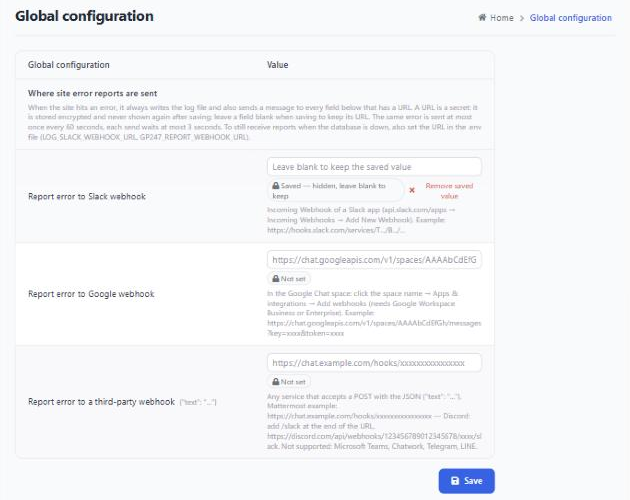
-
Paste the URL into the matching field: Report error to Slack webhook, Report error to Google webhook or Report error to a third-party webhook.
-
Read the note under the field if you are unsure the URL has the right shape — it says where to get the URL and gives an example. Click Save. If it works, the field shows the Saved label and goes back to empty — the URL is never shown again. If the field says "The URL must use https and point to a public address…", check the URL (see Conditions & Rules); when one field is refused, no field is saved.
-
To change a URL: paste the new URL into the field and click Save. Leaving a field empty when you click Save keeps the saved URL. To stop sending to a channel: click Remove saved value next to the field's Saved label and confirm — the URL is removed at once and cannot be restored.
-
Send a test report — open a terminal in the site's root folder (where the
artisanfile is) and run:php artisan tinker --execute="gp247_report('Test error report from the site');"If it works, the chat channel receives a message with a time line, a line
[site] <site address> · env=...and the textTest error report from the site. -
No message? Open
storage/logs/gp247-<date>.logand look for a linegp247 report webhook failed (<host name>): <reason>. A reason ofhttp_403orhttp_404means the URL is wrong or the webhook was deleted on the chat service's side.
ℹ️ Info: the Chatwork field of earlier versions has been removed — Chatwork does not take messages at a webhook URL. A Chatwork URL entered before (it never worked) is deleted during the update.
Fallback in .env
This section is for anyone who wants to keep receiving reports when the database is down — at that moment the site cannot read the settings saved on the Webhook screen.
Add the URL to the .env file in the site's root folder, then run php artisan config:clear (if the site uses config:cache, run php artisan config:cache again):
LOG_SLACK_WEBHOOK_URL=https://hooks.slack.com/services/XXX/YYY/ZZZ
GP247_REPORT_WEBHOOK_URL=https://mattermost.example.com/hooks/XXX
| Variable | Fallback for field | Used when |
|---|---|---|
LOG_SLACK_WEBHOOK_URL |
Slack | the Slack field on the screen is empty, or the database cannot be read |
GP247_REPORT_WEBHOOK_URL |
Third-party webhook | the third-party field on the screen is empty, or the database cannot be read |
- The screen wins: when a field on the screen has a URL, the value in
.envis not used. - Two limits you can change in
.env(optional):GP247_REPORT_TIMEOUT(default3seconds per send) andGP247_REPORT_THROTTLE(default60seconds before the same error is sent again).
Conditions & Rules (know before you act)
The limits below protect the site and the chat channel; knowing them avoids surprises when the screen refuses a URL or a message does not arrive.
When saving a URL on the screen
httpsis required — an error report carries page addresses and error details, it is not sent over an unencrypted connection.- It must be a public Internet address — a URL pointing at
localhostor an internal network (10.x,192.168.x…) is refused, so nobody can use the site to call into internal systems. - No user name / password inside the URL (
https://user:pass@...) — that form is refused. - One wrong field means no field is saved — so a half-saved setup cannot happen.
When sending
- Redirects are not followed — a URL answering with a redirect (301/302) counts as a failed send; use the final URL the service gives you.
- At most 3 seconds per channel per send — a slow chat service does not make visitors' pages hang.
- The same error is sent once every 60 seconds, and at most 30 messages a minute for all errors — an error repeating on a busy page does not flood the channel or get blocked by the chat service. The log file still records every time.
- Messages longer than 4000 characters are cut — the chat services' length limit; the full text is in the log file.
- Failed sends are not retried — a failed send is only written to the log file, not repeated, to avoid piling up load while the site has a problem.
Q&A
Q1: After saving, the field is empty again. Is my URL lost?
→ No. The URL is stored encrypted and not shown again so it cannot leak; the Saved label under the field tells you a URL is set.
Q2: How do I remove a saved URL?
→ Click Remove saved value next to the field's Saved label and confirm. Leaving the field empty and clicking Save does not remove it — the old URL is kept to avoid deleting it by mistake.
Q3: Do I need cron or a queue?
→ No. The message is sent while the failing request is being handled — it works on shared hosting too.
Q4: What if I use Microsoft Teams or Chatwork?
→ These services do not take a {"text"} message at a single URL, so they cannot be used directly. You still have the reports in the log file.
Q5: Why does the screen say my URL is invalid although it opens in the browser?
→ The URL must use https and point to a public address. http://… URLs, URLs of machines on an internal network and URLs with a user name in them are all refused.
Q6: Several sites send to one channel — how do I know which site a message is from?
→ Every message has a line [site] <APP_URL> · env=<APP_ENV> · .... Set each site's APP_URL to its real domain.
Q7: Do error reports contain passwords or secret codes?
→ They do not contain URL query strings or command arguments. Still, they carry page addresses and error details, so send them only to your operations team's private channel.
Q8: An error keeps happening but I receive only one message?
→ By design: the same error is sent once every 60 seconds. Check the log file for the real count.
Q9: Do I get reports when the database is down?
→ Only if you set the URL in .env (see Fallback in .env). A URL saved only on the screen lives in the database, so it cannot be read at that moment.
Q10: How do I turn off sending to chat channels completely?
→ Click Remove saved value on every field that has a URL and leave the fallback variables in .env empty. Errors are still written to the log file.
📅 Last updated: 2026-11-25 · ✍️ Author: GP247