


🌐 Language: 🇻🇳 Tiếng Việt · 🇬🇧 English (current) · 🇯🇵 日本語
Customers' personal data in S-Cart — download, deletion, retention
Introduction
This guide is for shop managers. Customers have the right to see, download and delete the personal data a shop keeps about them; data protection laws in many countries (Vietnam, Japan, the EU…) require the shop to answer within a deadline and not to keep data longer than needed. S-Cart does this out of the box: customers download or delete their data in their account, shoppers without an account send a request through a page of their own, you handle every request on one screen, and old data is cleaned by data retention without cron. After reading, you know what customers see, what you have to do, how to set the periods, and you have the list of data S-Cart stores to put in your shop's privacy policy.
⚠️ Not legal advice. The deadline to answer a request, how long invoices must be kept… differ by country and change over time — check the laws in force where you sell, then set the numbers in S-Cart to match.
At a glance
| Task | Who | Where |
|---|---|---|
| Download a copy of the data (ZIP file) | Customer with an account | Account area → My data (website or app) |
| Delete the account | Customer with an account | Account area → My data → Delete my account |
| Ask for a copy / for deletion without an account | Shopper without an account | Your personal data page (/privacy-request) |
| See and handle every request; create one for a customer | You (Administrator or a role given the permission) | Security → Personal data requests |
| Set the waiting days, the overdue threshold, the guest form | Administrator | Website configuration → Personal data |
| Set how long each kind of data is kept | Administrator | Security → Data retention |
flowchart LR
    K["Customer with an account"] -->|My data| Y["Request"]
    V["Shopper without an account"] -->|"/privacy-request + email check"| Y
    A["You (for the customer)"] -->|Requests screen| Y
    Y --> X["Export: ZIP package"]
    Y --> D["Erase: wait to change their mind → delete / anonymise"]
    H["Data retention"] -->|cleans old data| D2["Data past its period"]
1. What customers do in their account
The customer signs in and opens My data:
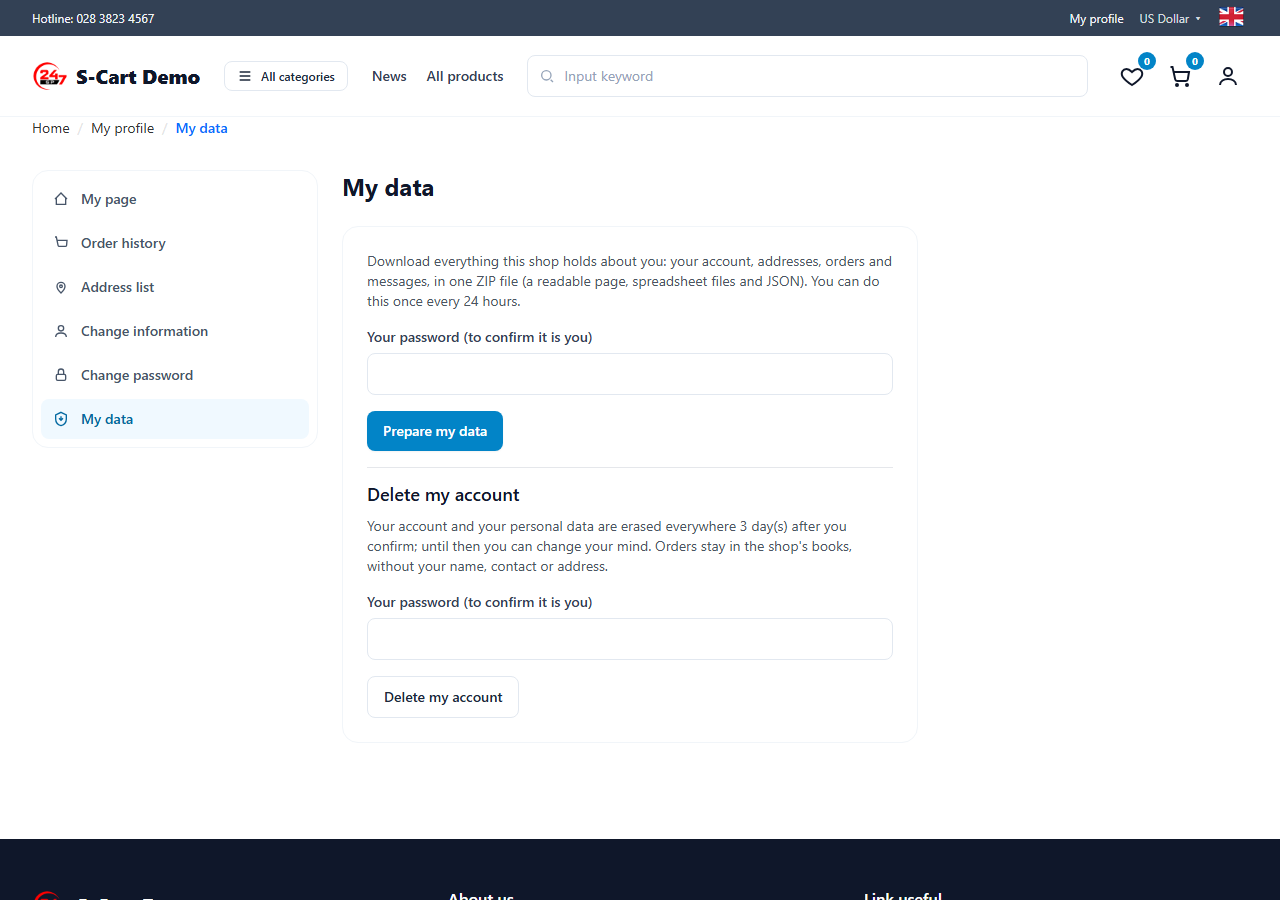
- Download the data: the customer types their password again (and their two-step code if they use one) → S-Cart prepares a ZIP file with a readable page, spreadsheet files and JSON: account, addresses, orders, messages… The page updates itself until the package is ready; it can be downloaded for 24 hours, and one package can be made every 24 hours.
- Delete the account: the customer types their password again → the deletion waits the number of days you set (3 by default) so they can change their mind. Meanwhile the account area shows a notice with a Call off the deletion button; the email sent to the customer has a call-off button too (no sign-in needed).
- While an order is still open (not completed / cancelled / failed / refunded), the deletion is put on hold until it is closed — you never lose the delivery details of an order in progress.
- Mobile apps using API v2 do both with the same rules.
The account deletion and unused account emails go only to verified addresses: nobody can use your shop to send mail to an address that is not theirs.
2. Shoppers without an account
Shoppers who ordered without an account use the Your personal data page (https://<your-domain>/privacy-request). Link to it
from your privacy policy page or your footer.
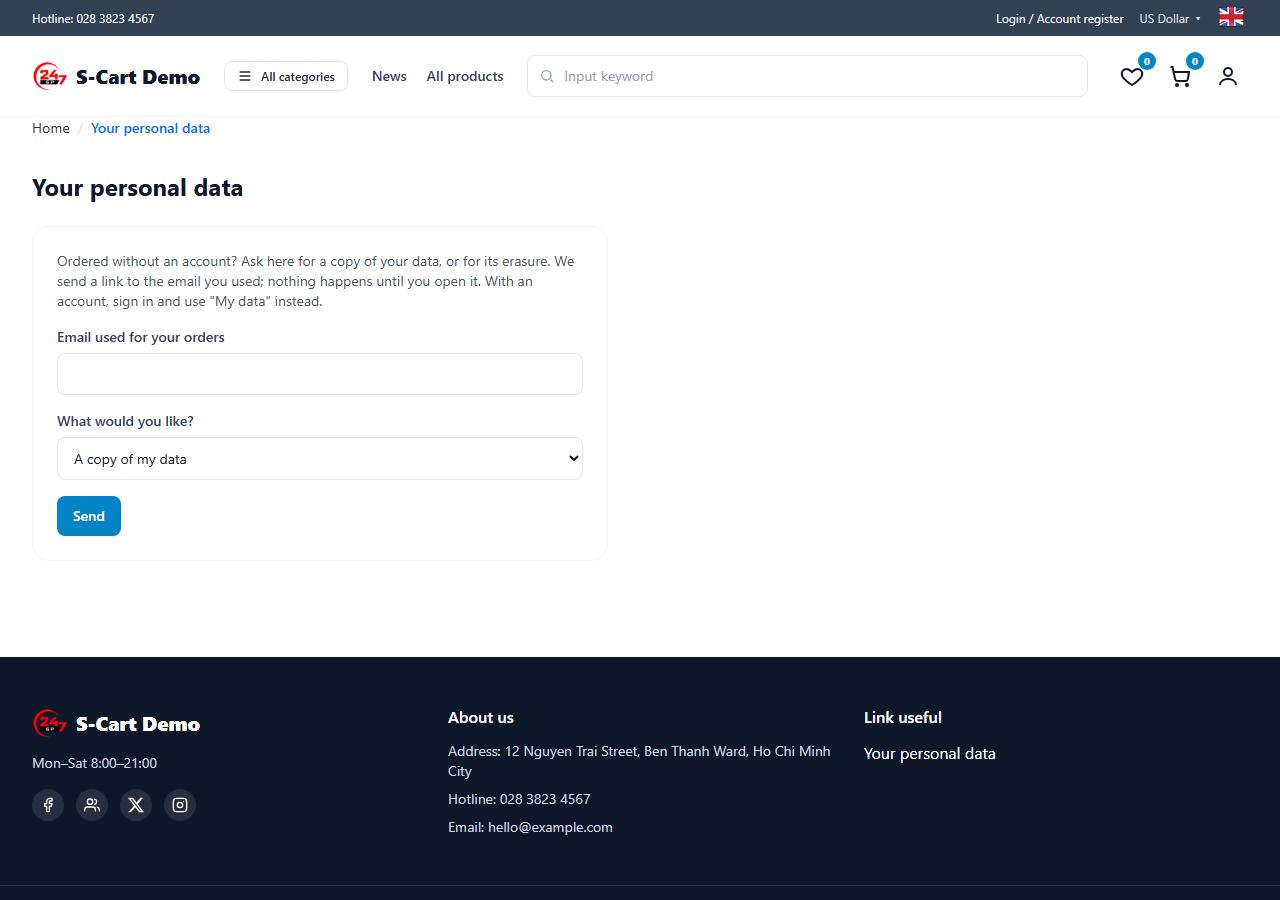
- The shopper types the email used for the order and chooses A copy of my data or Erase my data. The page always answers the same way — it never reveals which emails the shop knows.
- S-Cart sends an email with a confirmation button to that address; nothing happens until it is pressed.
- A copy: after confirming, the shopper downloads the package from a page with a download button. Erase: the request waits for your approval (or a refusal with a reason) — erasing by a guest's email cannot be undone.
The page exists only when the shop sends email and the form is on (section 4). For an email that never ordered, the shopper gets the same answer as everyone, but there is nothing to send. For an email that belongs to an account, the email invites the shopper to sign in and use My data. A request not confirmed within 24 hours is cancelled by itself.
3. You handle requests — Security → Personal data requests
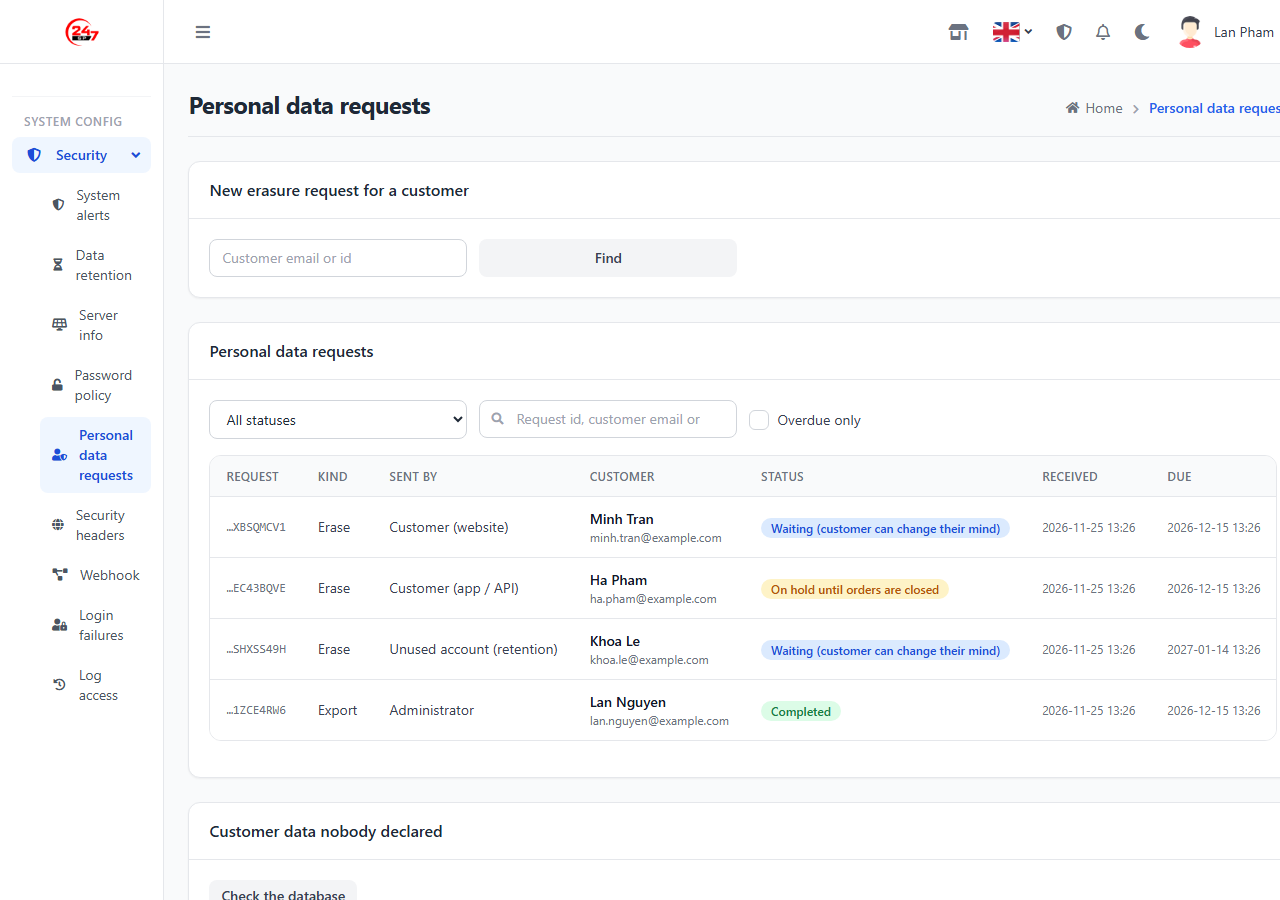
- Every request (website, app, guest form, created by you, unused account) is in one list, filtered by status or Overdue only. Due = received date + the days you set (20 by default); overdue dates turn red and System alerts warns you.
- New erasure request for a customer (they phoned, they wrote): search by email / customer id → choose Erase or Export → confirm with your password. You download an export package with the button on the screen (up to 3 times, within 24 hours), then send it to the customer the way you choose.
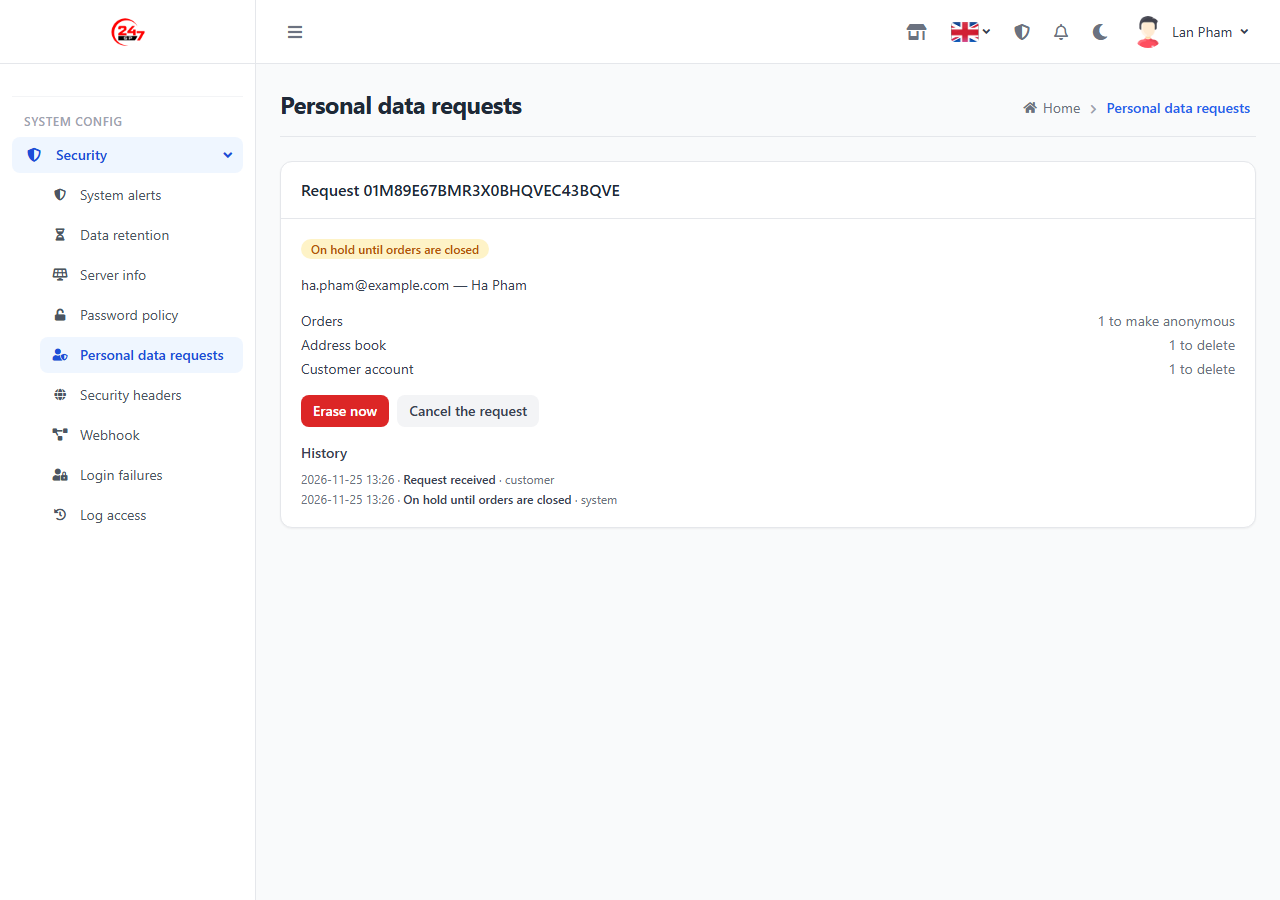
- Click a row for the detail: which data will be deleted / anonymised, the history, the Erase now / Cancel the request / Approve the erasure / Turn down buttons.
| Status | Meaning |
|---|---|
| Waiting for email check | A guest has not pressed the link in the email yet |
| Waiting for approval | A guest's erasure — you approve or turn it down |
| Waiting (customer can change their mind) | Waiting the set days before erasing; the customer / you can cancel |
| On hold until orders are closed | The customer has an open order — runs again by itself once it is closed |
| Processing → Completed | Erasing / building the package, then done |
| Cancelled / Rejected / Failed | Finished; Failed has a Run again button and a system alert |
stateDiagram-v2
    state "Waiting (can change their mind)" as Waiting
    state "Waiting for approval" as Approval
    state "Rejected" as Rejected
    state "Cancelled" as Cancelled
    state "On hold until orders are closed" as OnHold
    state "Processing" as Processing
    state "Completed" as Completed
    [*] --> Waiting: customer / you ask for erasure
    [*] --> Approval: guest asks for erasure (email checked)
    Approval --> Waiting: you approve
    Approval --> Rejected: you turn it down
    Waiting --> Cancelled: customer / you cancel
    Waiting --> OnHold: an order is still open
    OnHold --> Processing: the order is closed
    Waiting --> Processing: the wait is over
    Processing --> Completed
Who can use this screen: only Administrators by default. To hand it to staff, give their role the Personal data requests permission. "View all screens" (View.all) does not open it — it holds customers' personal data.
What erasing a customer does:
| Data | When the customer is erased |
|---|---|
| Account, address book, cart / wishlist / compare list, website and app sessions, password reset codes, custom fields | Deleted |
| Orders, order history, transactions, payment requests, shipments | Kept for the books, without name, contact, address, notes (the name becomes [deleted]); amounts, dates, order codes and lines stay |
| Contact form messages, newsletter sign-ups (by the account's email) | Deleted |
| Failed sign-in log | Kept until its own period (a security record) |
Revenue reports and accounting figures do not change when a customer is erased.
4. Settings — Website configuration → Personal data
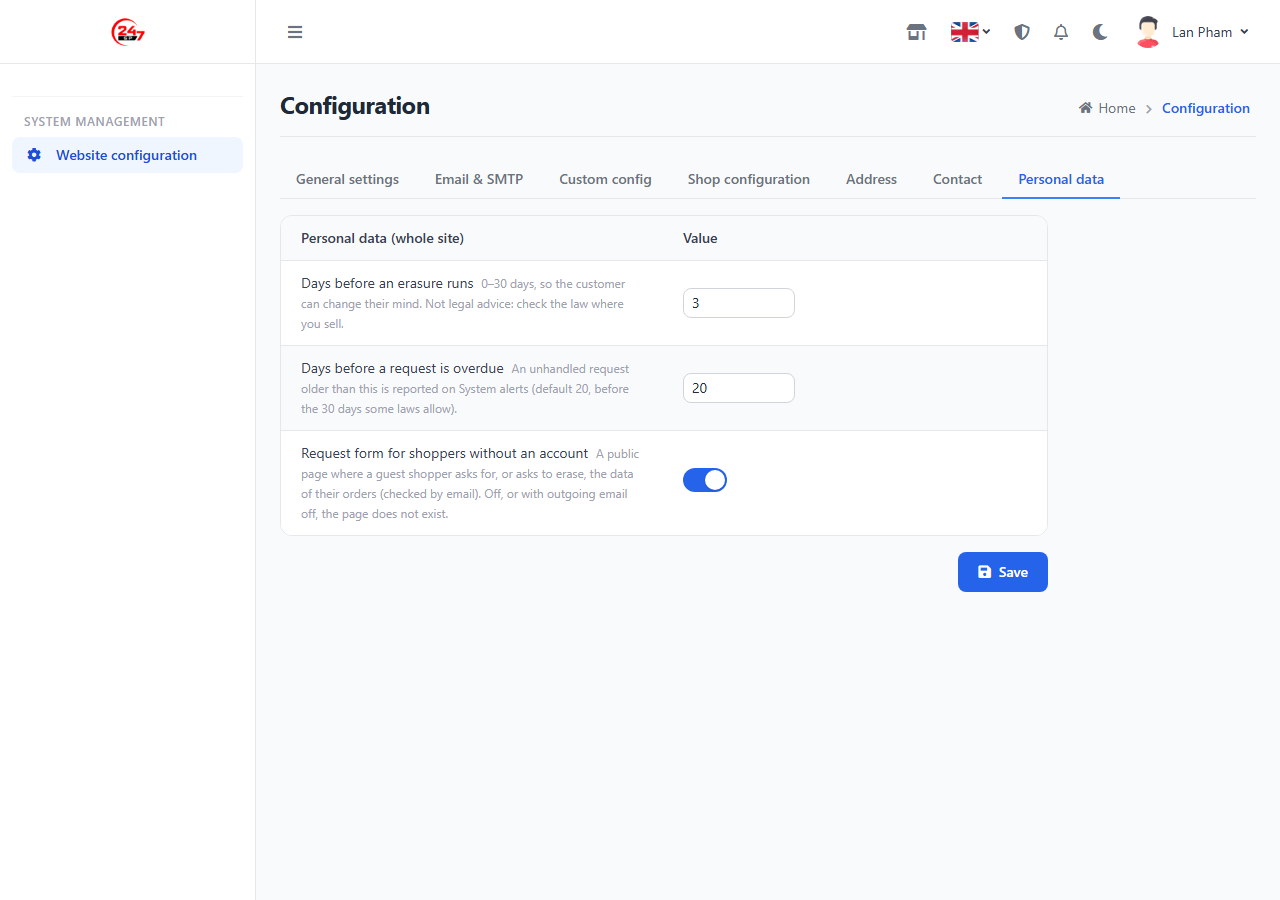
| Setting | Default | Tip |
|---|---|---|
| Days before an erasure runs | 3 (0–30) | 0 = erase as soon as the customer confirms |
| Days before a request is overdue | 20 | Shorter than the legal deadline where you sell |
| Request form for shoppers without an account | On | Off if the shop sells only to customers with an account |
Only Administrators change these settings — they apply to the whole site (every store).
5. Data retention — Security → Data retention
S-Cart does not keep personal data forever: each kind has days kept, and past them it is cleaned by itself.
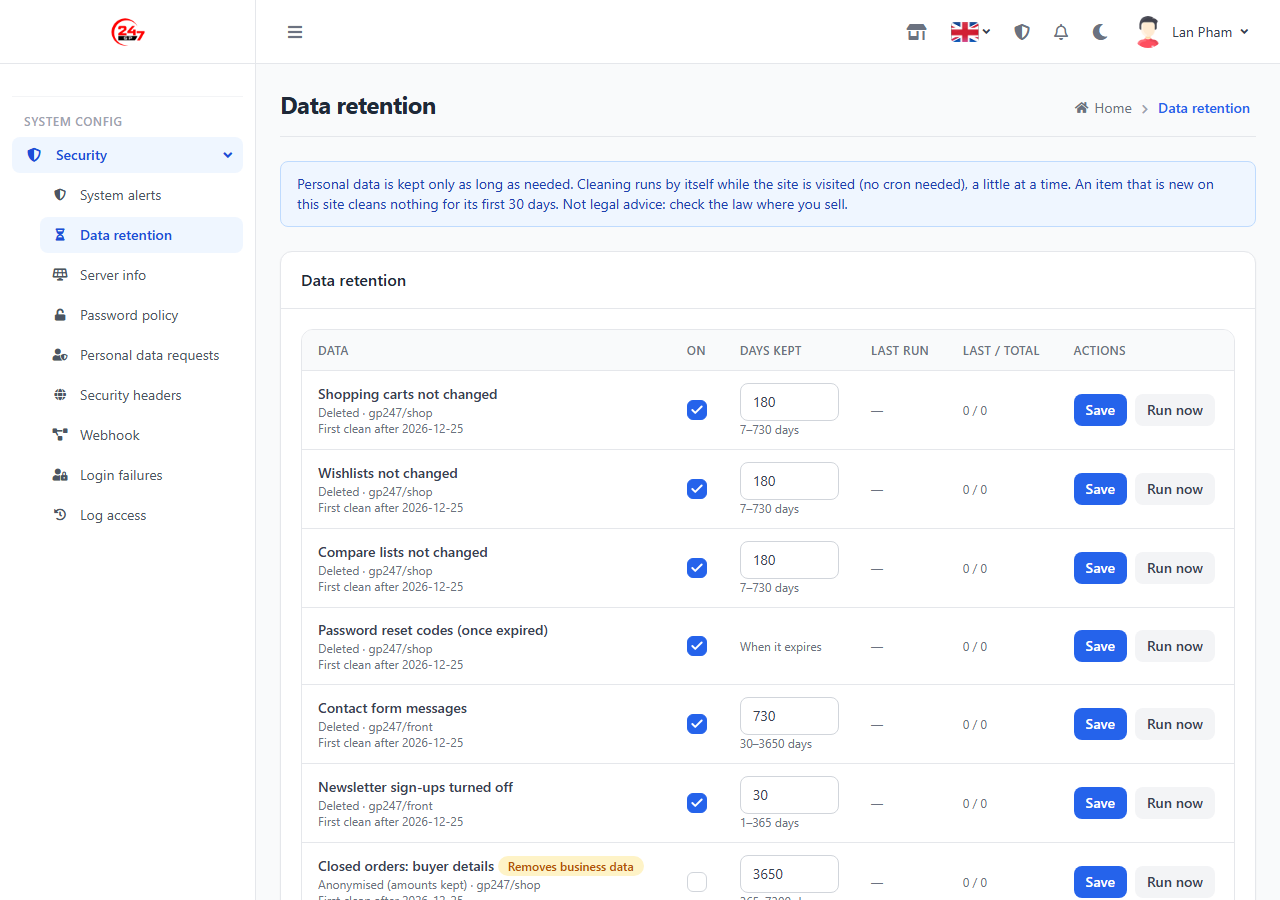
| Data | Default | When past its period |
|---|---|---|
| Shopping carts / wishlists / compare lists not changed | 180 days | Deleted |
| Password reset codes | Once expired | Deleted |
| Contact form messages | 730 days | Deleted |
| Newsletter sign-ups turned off | 30 days | Deleted |
| Admin activity log | 365 days | Old rows deleted (no row is ever edited) |
| Closed orders: buyer details | Off (10 years when on) | Anonymised as when a customer is erased; amounts kept |
| Customer accounts not used | Off (3 years when on) | Told 30 days before, then erased like a customer's own deletion |
| Personal data requests and their history | 5 years (fixed) | Deleted — kept as proof the request was handled |
- Nothing is cleaned in the first 30 days: an item new on the site (including a site just updated to a version with this feature) and an item you just turned on wait 30 days before their first clean; System alerts warns you 7 days before, with the number of rows. To clean earlier: Run now → confirm → type your password again.
- Two items are off by default because they remove business data. Turning them on shows how many records are concerned, asks for your password again and — if backups are on — saves a backup of that data first. How long accounting records must be kept is set by law: check before choosing the period.
- Unused accounts count from the customer's last sign-in (website or app) or order, and never before the day you turned the item on — old accounts are not judged "unused" just because S-Cart did not record sign-ins before. The customer gets an email (verified address), and signing in or pressing Keep my account keeps it; an account with an open order is never erased.
How it runs (no cron needed): each time someone uses the admin area, S-Cart cleans a little (one kind per minute at most). On hosting running PHP-FPM or LiteSpeed, it also runs after storefront visits, once the page has been sent to the visitor. On hosting without either, it runs only when someone uses the admin area — a site rarely administered cleans slowly.
💡 A site with cron (or a scheduler plugin) that wants regular cleaning: add the command
php artisan gp247:personal-data-retention(for example once a day). Preview without changing anything:php artisan gp247:personal-data-retention --dry-run.
6. Backups and restores
An older backup may still hold data of customers erased since. When you restore, S-Cart erases those customers again (the erasure ledger keeps only the customer id and a hash of the email, never the erased data). Records of erased customers are not added back when restoring single records either. See also Backup & restore.
7. Data S-Cart keeps about customers (for your privacy policy)
This list helps you write the "what we collect" part of your shop's privacy policy. Plugins may keep more — see Customer data nobody declared on the Personal data requests screen (Check the database button).
| Group | Data | Purpose | Kept |
|---|---|---|---|
| Account | Name, email, phone, birthday, gender, company, address, last sign-in | Sign-in, delivery, contact | Until the customer deletes it (or the "unused accounts" item if you turn it on) |
| Address book | Name, phone, address | Faster delivery | As the account |
| Orders | Name, email, phone, delivery address, notes, IP, browser; order history, transactions, shipments | Selling, accounting, fraud prevention | As the law requires for records; anonymised when the customer is erased (amounts kept) |
| Cart / wishlist / compare list | Products chosen | Shopping | 180 days unchanged |
| Sessions | Website and app sessions (IP, device) | Keeping the customer signed in | Until sign-out / expiry; deleted with the customer |
| Password reset codes | Email, code | Recovering the password | Until they expire |
| Contact / newsletter | Name, email, phone, message | Answering, newsletters | 730 days / 30 days after turned off |
| Security logs | Email typed in failed sign-ins; administrators' actions | Keeping the system safe | Their own periods; admin activity log 365 days |
| Personal data requests | Customer id, email hash, history | Proof of handling | 5 years |
Conditions & constraints (understand before acting)
When erasing
- An erasure cannot be undone. The waiting days are the only time to change one's mind; after that only a backup restore brings data back — and the restore erases that customer again.
- A customer with an open order: pressing Erase now on a waiting request moves it to On hold until orders are closed; creating a new request with immediate erasure is refused and the screen lists the open orders.
- Rows found by email join a customer's own request only when the account's email is verified — so data of someone else sharing the email is not erased by mistake.
When sending email / the guest form
- Without email sending turned on there is no
/privacy-requestpage and customers get no notices — turn sending on in Website configuration → Email & SMTP. - At most 30 emails per hour from the guest form for the whole site — so it cannot be used to send mail in bulk.
When turning on data retention
- Hosting without PHP-FPM / LiteSpeed and without cron: cleaning runs only when someone uses the admin area.
- Items off by default remove business data — turn backups on first; a system alert reminds you if you turn such an item on while backups are off.
Questions & Answers (Q&A)
Q1: A customer phoned asking to delete their data — what do I do?
→ Security → Personal data requests → New erasure request for a customer → search by email → channel "Phone" → confirm your password. The request waits the set days then runs by itself, or press Erase now.
Q2: Does erasing a customer change revenue reports?
→ No. Orders are kept with their amounts, dates and lines; only the buyer's details are removed.
Q3: A request stays "On hold until orders are closed"?
→ The customer still has an order not completed / cancelled / failed / refunded. Close that order and the request runs at the next check.
Q4: I want to keep carts longer than 180 days?
→ Security → Data retention → change the days of Shopping carts not changed (7–730) → Save. To stop cleaning: untick On.
Q5: Why was the old admin activity log not cleaned right after the update?
→ A new item waits 30 days before its first clean, so you can review and change the period. System alerts warn 7 days before.
Q6: A guest asks for erasure but the law makes me keep invoices?
→ Erasure only anonymises orders (amounts, order codes, dates stay) — the records remain. If you still need to refuse, press Turn down and give the reason; the shopper gets an email with it.
Q7: A plugin I installed keeps customer data — is it erased too?
→ Yes, when the plugin declares it. Undeclared tables show under Customer data nobody declared — ask the plugin author to declare them, or handle that part by hand when a request comes.
Change history
| Date | Version | Change |
|---|---|---|
| 2026-11-25 | S-Cart 3.12.0 | New page: customers download / delete their data, requests from shoppers without an account, the requests screen, data retention |
📅 Last updated: 2026-11-25 · ✍️ Author: GP247